Organize the Find Grid Columns / Fields
You may change the selection and position of any of the fields (columns) that display on The Find Grid; you can either use the Columns and Sorting screen or you can drag-and-drop the desired columns.
- From The Initial Portal of Church Windows choose Membership
- Click The People File button
- Using the Find Function, enter your desired search criteria and click Find
- This will open The Find Grid
- Once there, you have two options for choosing the desired fields and the order in which you view them, either:
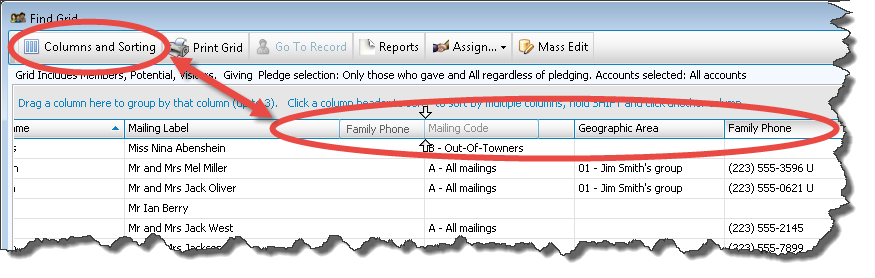
- Click the Columns and Sorting button at the top of The Find Grid.
- The Find Grid Options screen will appear.
- This screen defaults to showing the Columns tab, where you will make the field / column changes:
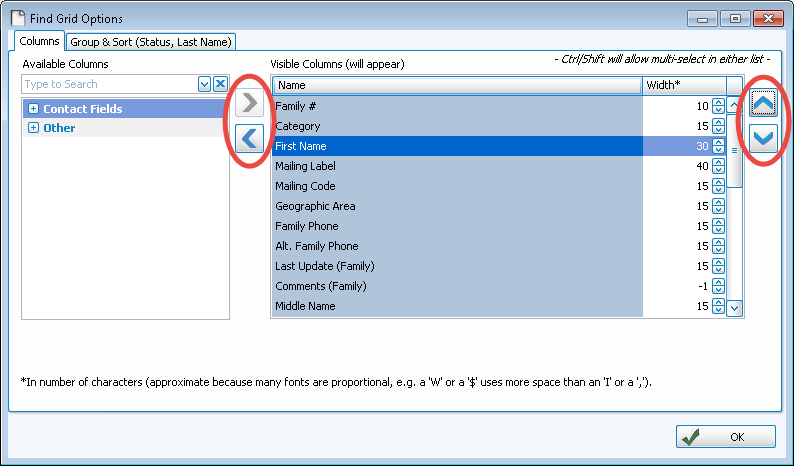
- The Columns tab has two lists on it:
- The Available Columns list on the left shows all the columns that you can use for the Grid.
- The Visible Columns list on the right shows only the columns that will display on the Grid you are viewing.
- If you want a column to show on the Grid, click to select it. Then press the
 right button.
 - The column will then appear in the Visible Columns list, making it set to appear on the Grid.
- If you need to hide a column from the Grid, click the column name and press the
 left button to keep it in the Available Columns list.
 - The Columns tab also lets you change the order of the columns that appear on the Grid. To do so, click to select any desired column that has been already placed on the Visible Columns list. Then use the up and down arrows to move the column's position in the list.

- Each column is set to print at a certain column width automatically. You can also change the width of the columns that show on the Grid. Raise or lower the number in the Width* column according to your preference.
- When you are satisfied with your setup, click OK.
- On The Find Grid screen, left click and hold down the mouse button on the column heading that you would like to move and then drag that column to the left or to the right.
- As you drag the column, you will see white arrows above and below the spot where you are about to drop it and the column header box itself will be translucent as you drag it to help you see more clearly. Let go of the mouse once the column is where you would like it to be.
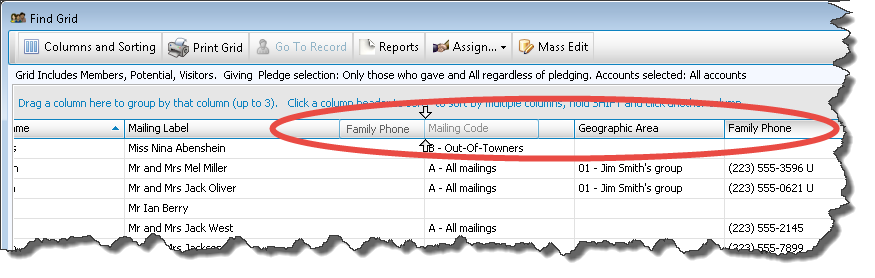
- To add or remove fields / columns, you will need to open the Columns and Sorting window, as explained above.
 Columns and Sorting
Note:
Alternatively, you can double click on a column / field to move it to the opposite side of the screen, instead of using the arrow buttons. This can save you time and keystrokes.
OR
Drag-and-drop
If you wish to alter the order of the list of family or individual records that you're seeing, you can also Group & Sort the Find Grid Records according to your needs.
