Electronic Filing
We're proud to announce our partnership with Aatrix, our partner in eFiling State and Federal Tax Forms.
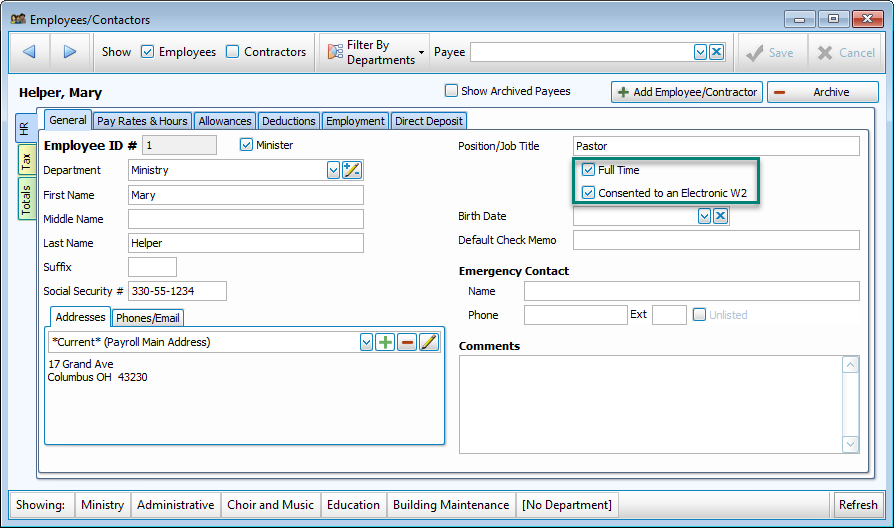
Some Federal and State filings require information from the Employees & Contractors Files. Fields including Full Time status and Consent to Electronic W2 or 1099s are required. You may also need to complete additional information about Miscellaneous Tax and Local Tax if you've converted from an older version of Payroll and are filing electronically.
Initial Setup
If prompted, confirm that Aatrix can install the files required to produce tax documentation.
The first time you generate a tax form, you will be prompted to confirm and complete additional information. To return to these setup screens to make changes or additions, click  from the Tax Forms tab, and then go to
  .
.
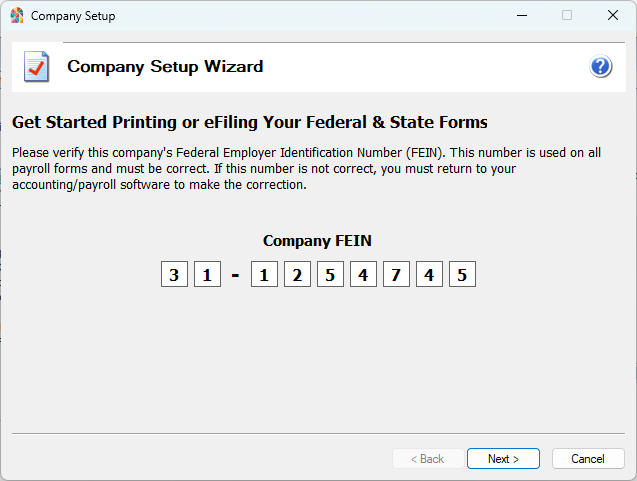
Enter or confirm your Federal Employer Identification Number.
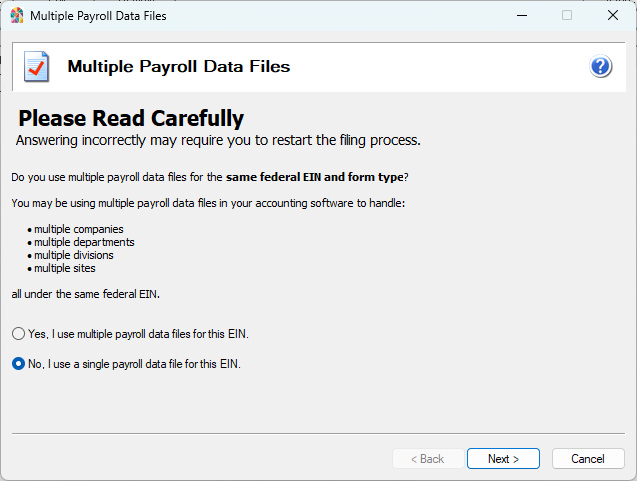
Indicate whether you will have multiple Payroll databases under the same FEIN.
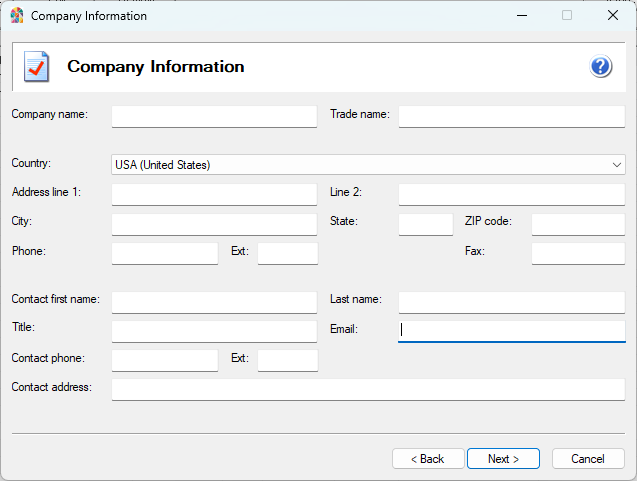
Fill out information about your church. Company Name, Address Line 1, City, State, ZIP, and Phone are required fields.

Indicate whether a company representative or a third party will be filing tax forms.
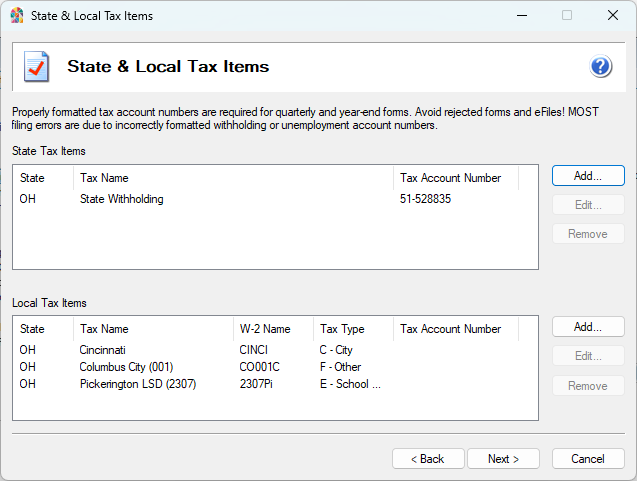
Enter or confirm State and Local tax accounts.
Additional Data Setup
Fields highlighted below in the Employee Files are relevant to electronic filing. These fields are new to this version of Payroll and should be completed for each employee.
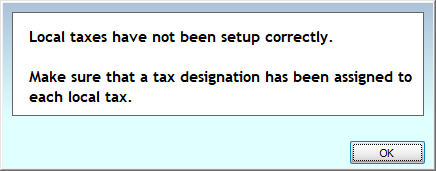
Some forms required additional information about State and Local designations. You'll receive an alert if you have additional information to provide about a Local or Miscellaneous tax.
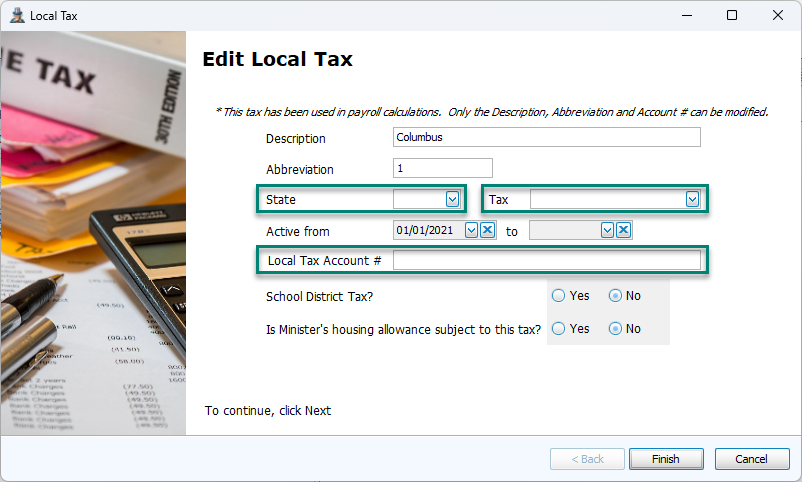
Click OK. Go to Data Setup > Local Tax. Click Edit to fill in the following highlighted fields.
Form Selection
To browse available forms, choose the Type of form to file:. For State forms, you can display your state's forms with the dropdown. You can also filter by Year or Reporting period.
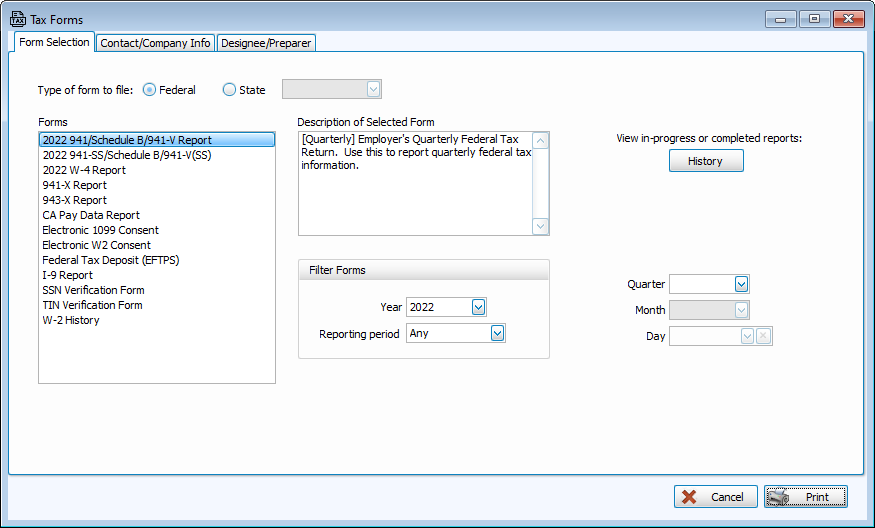
Once a form has been selected, choose the Quarter, Month or Day in the lower right, when applicable.
Tax Form History
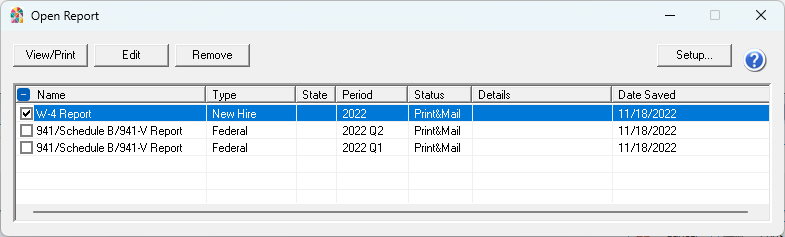
Previously generated forms are stored in the History section.
-
Click
 to open and print a copy of a previously created form.
 -
Click
 to save a copy of the form to be able to edit and make changes to forms that have been completed or to open a form in progress with a Status of Draft.
 -
Click
 to delete a form from the History window.
Note: Form history is saved and encrypted within the Church Windows Backup Data utility. In the event of a Restore Data of this data, leave the box for Tax Forms checked after selecting data to restore.
Contact/Company Info
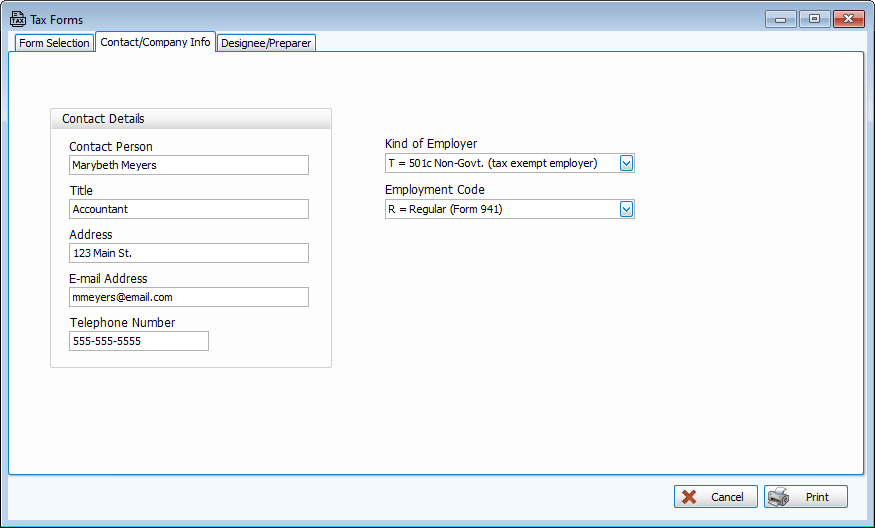
This tab contains the contact information for the person responsible for filings and the 501(c) status and Employment Code.
Designee/Preparer

If tax forms are filed by a third-party designee or tax preparation service, complete the information in this form.
Electronic Signatures
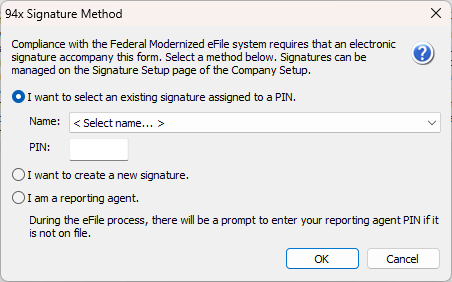
To use eFile options, Aatrix will submit the required forms that authorize electronic filings and signatures.
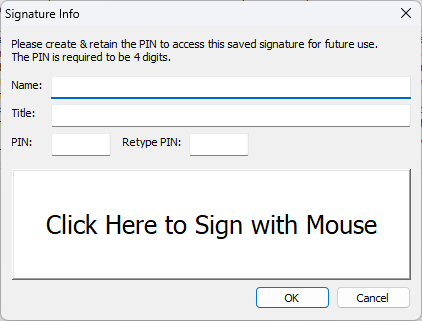
The first time you process and begin the submission process for eFiling, you'll be prompted to create an Electronic Signature. You will save your signature with 4-Digit PIN to use your signature for future fiilings.
Electronic Signature Agreement
"Under penalties of perjury, I declare that I have an approved role (as identified in the instructions for the employment tax return) within the company listed above and the information I have given the electronic return originator (ERO), transmitter, and/or intermediate service provider (ISP) and the amounts in Part I above agree with the amounts on the corresponding return. To the best of my knowledge and belief, the return is true, correct, and complete. I consent to the ERO, transmitter, and/or ISP sending the return, this declaration, and accompanying schedules and statements to the IRS. I also consent to the IRS sending the ERO, transmitter, and/or ISP an acknowledgement of receipt of transmission and an indication of whether or not the return is accepted and, if rejected, the reason(s) for the rejection. If the processing of the return or refund is delayed, I authorize the IRS to disclose to the ERO, transmitter, and/or ISP the reason(s) for the delay, or when the refund was sent."