Budgets
The Accounting module offers two ways to view and adjust budgets. You can use the Budgets screen to manually enter a budget amount for the desired accounts or you can use Budget Projections to adjust the current budget based on a percentage of either the prior year's actual income or budget amounts.
Access Budgets
To access from the Button Bar, go to Budgets > Budget

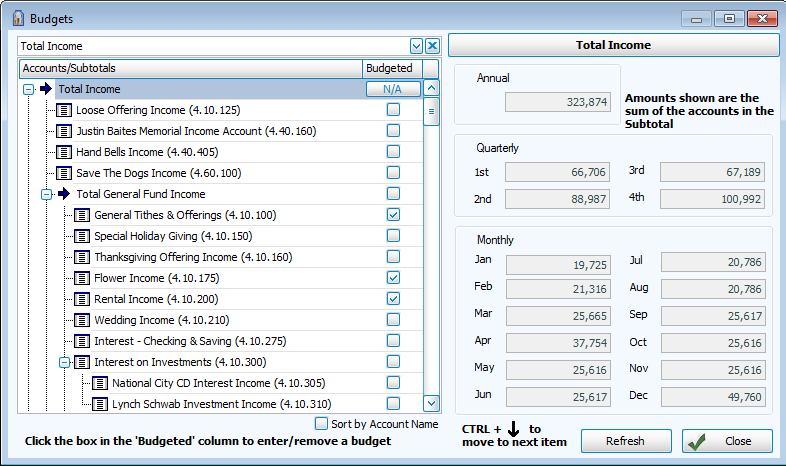
Accounts/Subtotals
Use the dropdown box or the list below it to locate an account and make changes to the budgeted amount.
Sort by Account Name
Place a check mark in the box to reorder the list.
Budgeted
Click the box to place a check mark and add budgets. Remove the check mark from the budgeted box to exclude the account from being budgeted.
Annual, Quarterly, or Monthly
Choose the option that describes the kind of budget you want to apply. Advance to the next account with CTRL + Down Arrow. All time periods will be calculated.
Set Amounts to 0
Click this button to reset all stored amounts to zero.
Refresh the budget content by clicking Refresh. Click Close to exit.
 Budgets
- Access the Budgets screen by clicking the option for it under the Budgets menu in the Button Bar at the top of the screen:
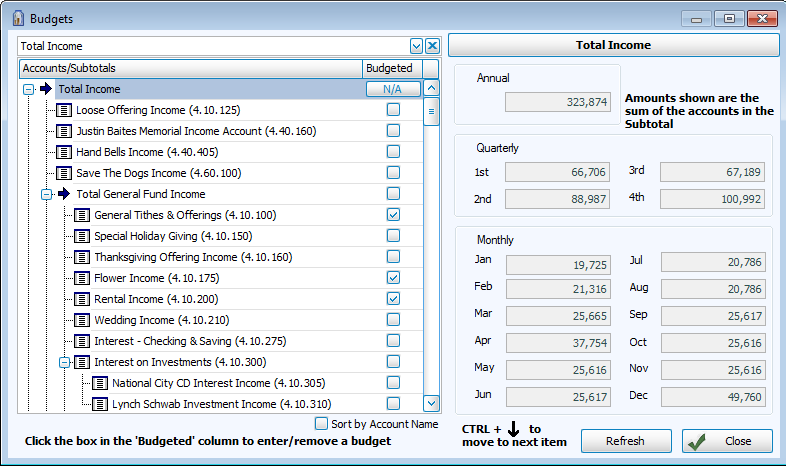
- Accounts / Subtotals
Use the dropdown box or the list below it to locate an account and make changes to its budget amounts. - Sort by Account Name
Place a checkmark in the box to reorder the list. - Budgeted
Click the box to place a checkmark and add budgets. Remove the checkmark from the Budgeted box to exclude the account from being budgeted. - Annual, Quarterly, or Monthly
Choose the option that describes the kind of budget you wish to apply.- Enter the amounts in each box made available by the kind you chose.
- To advance to the next account you can either click it, or press the CTRL and ↓ down arrow keys on your keyboard.
- The amounts of the other budget types will adjust according to the amounts you enter.
- Set Amounts to 0
You can click this button to reset all stored amounts to zero (only available for Expense Accounts, not Income). - Refresh the budget content by clicking the button, or click Close to exit.
After budget amounts have been entered, you can then run a Budget Report to provide a means to review the budget in a format that you can print out, Exports to a file, or Send via Email.