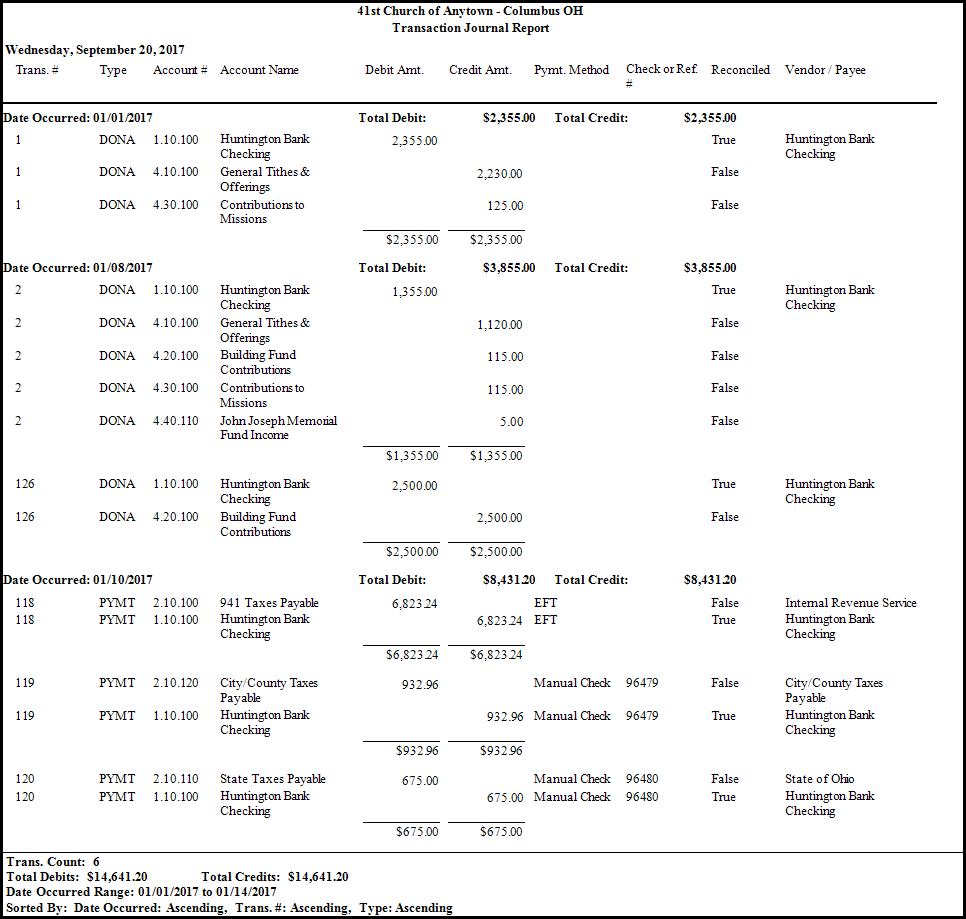
Transaction Journal
The Transaction Journal is a printable and/or exportable log of transactions whose report contents are determined by the adjustments you make on the Transaction Journal report options screen.
- Click Reports/Export in the Button Bar at the top of the screen.
- Click the Transaction button and a menu will show the option for Transaction Journal.
- Click the Transaction Journal option.
- Use the fields on the Filter tab to specify the common characteristics that you want the transactions in the list to have by choosing any or all of the Filter tab options.
- To restore the settings to their original state, click the Clear Filter button at any time on the bottom right.
- Choose any of the following tabs to apply additional settings:
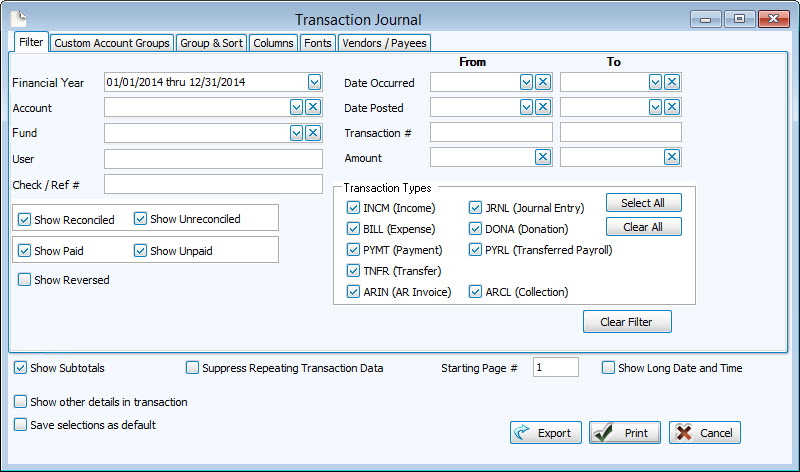
Custom Account Groups Tab
If the group you wish to choose is not there, you can even add a new group by clicking + Custom Account Groups button, and adding to the new group only the accounts you wish the report to show.
Group & Sort Tab
Arrange the list of transactions by up to three columns (sort fields). Click to change the order of each sort field to either Ascending or Descending order and separate the data into categorized groupings.
Columns/Fields Tab
Check the Visible Columns list on the to see which columns are set to display.
Fonts Tab
Change the size and style of the font that prints on the report.
Vendors / Payees Tab
Specify only transactions that affect certain Vendors / Payees.
Once you have made all of your selections, click Print to view a Print Preview and then proceed in sending the file to your printer. You can also Exports most reports and/or Send via Email as a file to be used outside of Church Windows.
 Transaction Journal Example