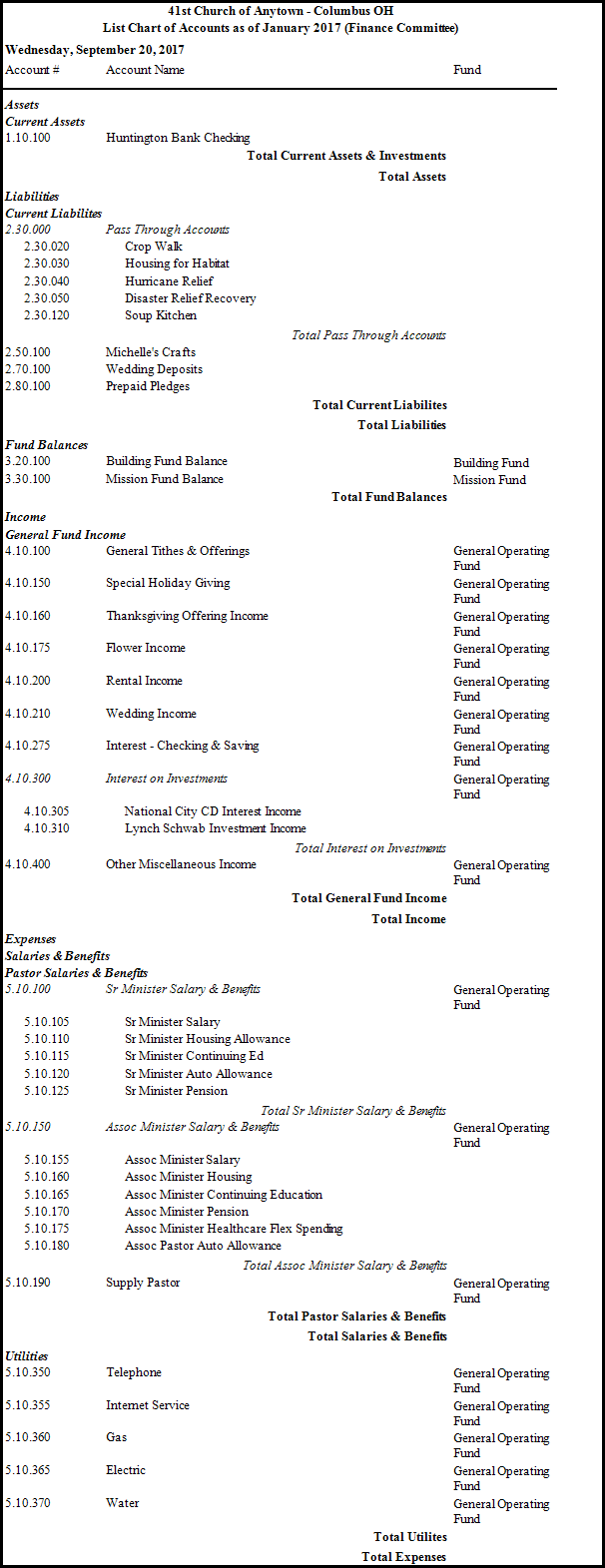
List Chart of Accounts
The List Chart of Accounts report will compile a list of the accounts that you or your organization have set up in the Chart of Accounts, along with their net activity amounts for the month selected, and their year-to-date balances.
Run Report
-
Click Reports/Export in the Button Bar at the top of the screen.
-
Click the Worksheet button and select List Chart of Accounts from the list of options.
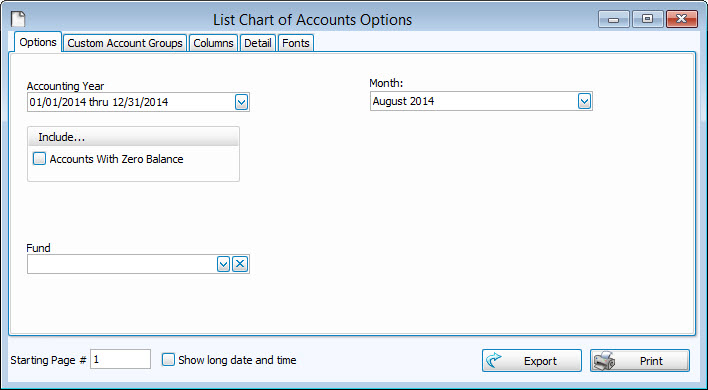
-
Choose the desired Accounting Year from the dropdown box.
-
Include Accounts With Zero Balance on the report by clicking a checkmark in the box.
-
Fund - If you choose to run a report that shows information for only one fund, click the dropdown box and select it.
-
Additional Settings

Choose Custom Account Groups if you want to display a specified group of account. If the group you wish to choose is not there, you can even add a new group by clicking + Custom Account Groups button, and adding to the new group only the accounts you wish the report to show.
Columns/Fields Tab - Check the Visible Columns list on the to see which columns are set to display.
Detail Tab - Show or hide any of the balances of any Subtotals from the report by making selections on the Detail tab.
Fonts Tab - Change the size and style of the font that prints on the report.
Once you have made all of your selections, click Print to view a Print Preview and then proceed in sending the file to your printer. You can also Exports most reports and/or Send via Email as a file to be used outside of Church Windows.
 Chart of Accounts Example