Budget Projection
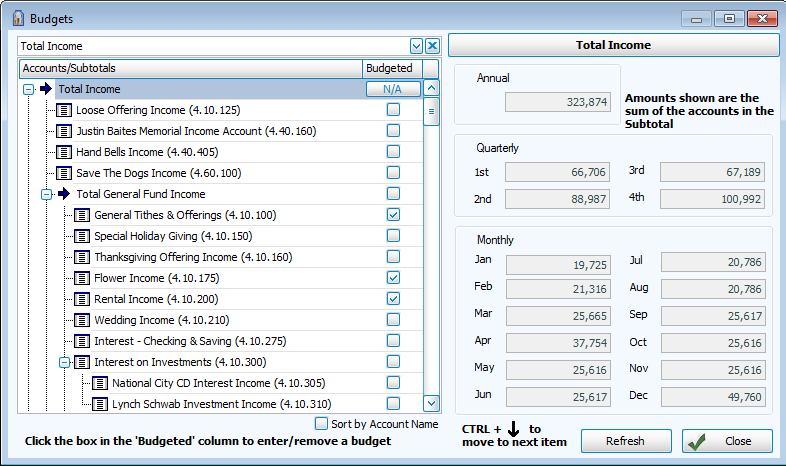
The Accounting module offers two ways to view and adjust budgets. You can use the Budgets screen to manually enter a budget amount for the desired accounts or you can use Budget Projections to adjust the current budget based on a percentage of either the prior year's actual income or budget amounts.
Access Budget Projections

To access from the Button Bar, go to Budgets > Budget Projection
Budget Projection
If there is a prior year from which to project budgets, the Budget Projection screen will display a list of the Budgeted Accounts and Subtotals and the Prior Year Budget, Prior Year Actual, and Projected Budget amounts that apply to the current and prior Accounting Year.
While the Budget Projection screen is open, it has exclusive access to account editing. No other users will be able to make changes to accounts if this window is open.
- Access the Budget Projection screen by clicking the option for it under the Budgets menu in the Button Bar at the top of the screen:
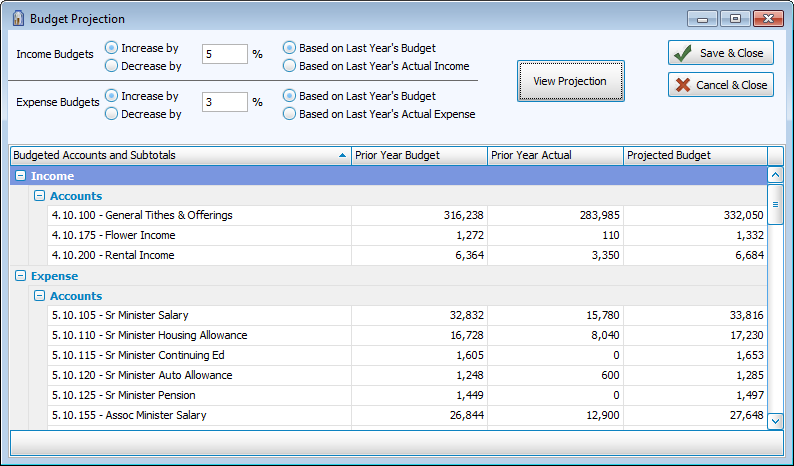
- Use the letter indicators in the image below to follow the instructions for setting up a Budget Projection:

- For each account type(A), make the desired selections to either increase or decrease(B) a budget amount by a certain percentage(C).
- Then choose between adjusting your selections based on (D) either last year's budget or last year's actual Income / Expense.
- Click the View Projection button to apply the selections you made for the Budgeted Accounts and Subtotals.
- Review the Projected Budget and make as many changes to (B), (C), and (D) as needed.
- If you wish to apply the projected budget amounts as the current Accounting Year budget amounts, click the Save & Close button.
- Otherwise, click Cancel & Close to exit without saving any changed information.