Subtotals
Once you have your Chart of Accounts entered, you can add subtotal lines to show on your reports a balance that represents all the accounts in the subtotal grouping.
Access Subtotals

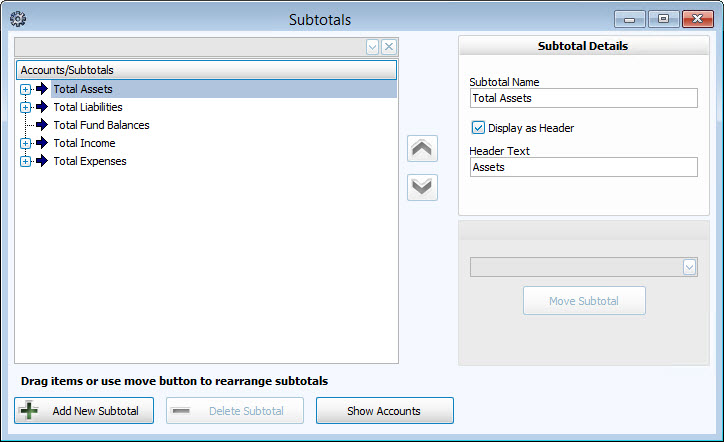
To access from the Button Bar, go to Chart of Accounts > Subtotals
- From The Initial Portal of Church Windows, choose Accounting
- Choose Manage Accounts in the Button Bar at the top of the screen
- Click the Subtotals button
- Click the Show Accounts button at the bottom of the screen to reveal the accounts among the existing Subtotals.
- If no accounts immediately appear, expand the node of any subtotal until the account you need is revealed. Access ExportsExport from the Step 2 screen by clicking
 . Click the down arrow for all options or click the Export Document button to select the default of PDF.
 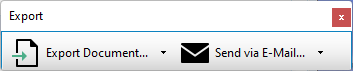 From the Print Preview window, you'll find export options in the controls at the top.
 Send via EmailIf you have an functional email client installed on your computer, such as Microsoft Outlook, this allows you to save and attach a file to a new message. This differs from the functionality of the Email feature within the program. If you want to email out of Church Windows, you can save your file and attach it when you Send Email.PDF
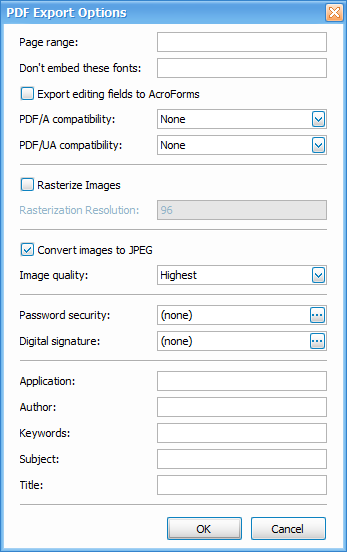 Portable Document Format developed by Adobe. PDF documents are primarily meant to view and distribute. Although some programs enable edits and alteration to PDFs. PDF documents can be opened in a web browser or with Adobe Acrobat.HTML
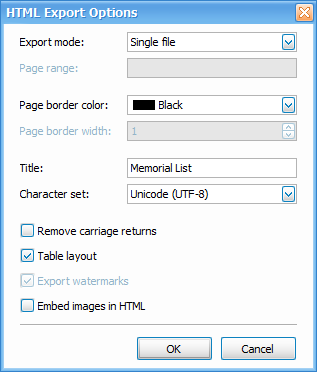 HyperText Markup Language is a markup language for documents and web pages. HTML files display in a web browser.MHT
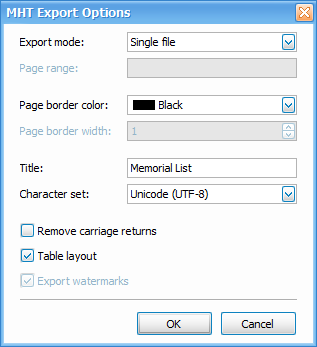 MIME HTML or MHTML is a collection of HTML document. MHT files display in a web browser.RTF
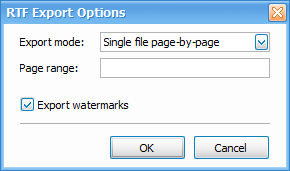 Rich Text Format is type of text file. Rich text refers to the ability to include formatting such as text decoration, font selections and colors. Microsoft no longer updates RTF but most word processors still support it. This file type allows documents to be edited and transferred between different programs and operating systems.Excel/XLS
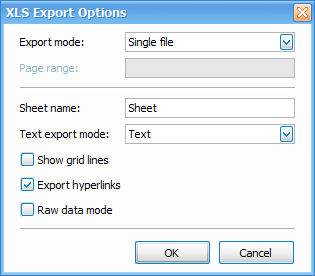 XLS files are a spreadsheet file developed by Microsoft. This file type was replaced by XLSX in 2007, however XLS will open in legacy software and can be converted to a more modern file type. XLS files open in most spreadsheet applications such as Excel, Google Sheets, or OpenOffice.XLSX
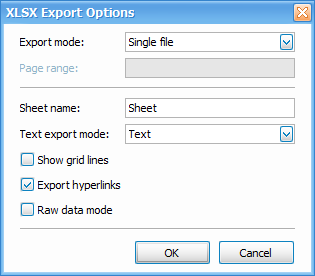 XLSX are a spreadsheet file developed by Microsoft. XLSX files open in most spreadsheet applications such as Excel, Google Sheets, or OpenOffice.CSV
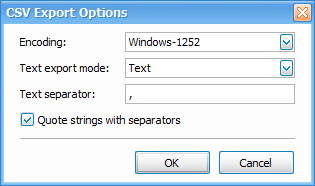 Comma-Separted Values files are commonly used by spreadsheet programs. These consist of plain text data, separated by commas. This format does not include formatting and is often used for import/export with third-party applications. If you intend to manipulate and format the data, the plain text format is easiest starting point that can be converted to another file type after export. CSV files can open in most spreadsheet applications such as Excel, Google Sheets, or OpenOffice.Text
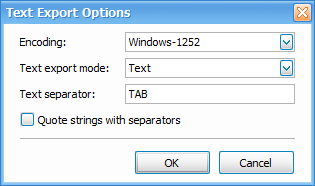 Plain text files are simple documents with unformatted ASCII text. These file types will open in any text editing program such as Notepad or Microsoft Word.Image
 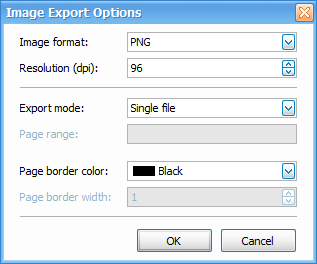 Image files save a picture of the export as an image file. Image exports default to .png files but options include .bmp, .emf, .wmf, .gif, .jpeg, and .tiff. See the following image for an example: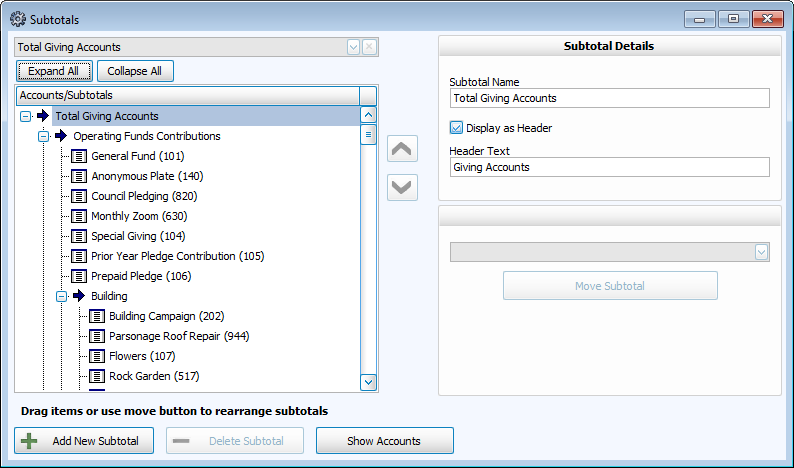
Click
 , a collapsed node
It turns into
 , an expanded node
Which then reveals
 any available accounts
Add and Remove Subtotals

- Click Add New Subtotal to begin setting up your new subtotal.
- To remove a subtotal, first be sure that it does not contain any accounts or other subtotals before removing it. Once the subtotal is empty, click Delete Subtotal to remove it.
Move an Account
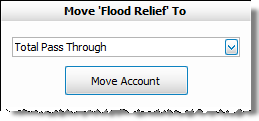
- Once you reveal the location of the
 account, click it once to select it.
 - Use the
 dropdown box above the Move Account button to select the destination subtotal.
 - Then, click Move Account to move the account to the new location.
Move a Subtotal
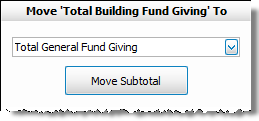
- Once you reveal the location of the
 subtotal, click it once to select it.
 - Use the dropdown box above the Move Subtotal button to select the destination subtotal.
- Then, click Move Subtotal to move the subtotal to the new location.
- Alternatively, you can also move the subtotal by clicking the one you want to move, and clicking the up or down arrows
 found in the middle of the screen.
Click-and-Drag Subtotals and Accounts
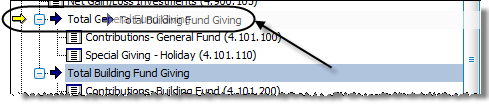
- Locate the desired subtotal or account, and click it once to select it.
- Then click and hold down the mouse button and drag the mouse pointer towards the destination Subtotal.
- Release the mouse button when the destination subtotal is reached.
Subtotal Details
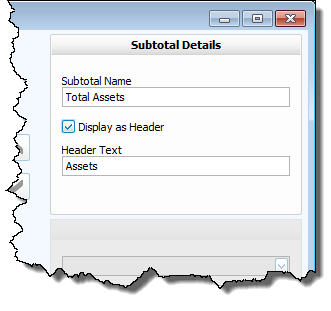
- Click any subtotal in the list and type the Subtotal Name in the box provided.
- Place a check in the box if you would like this name to Display as Header for the accounts and Subtotals in its group.
- Type in a Header Text if you wish the header to be of a different name than the Subtotal Name.