Print Preview
From this screen you can review, export, or print. Controls for the Print Preview are located at the top of the screen.
If you click the  button but the Print Preview doesn't appear, it may be opening behind the program. Hover over the Church Windows icon on your start bar to see all the open windows associated with the program. Click Print Preview to bring it to the front.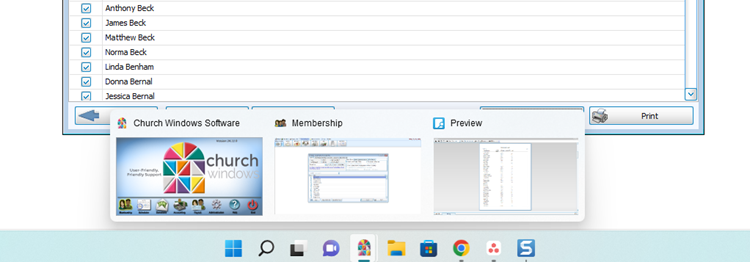

 Search
Search allows you to find a word or phrase in the document.

 Print
Print
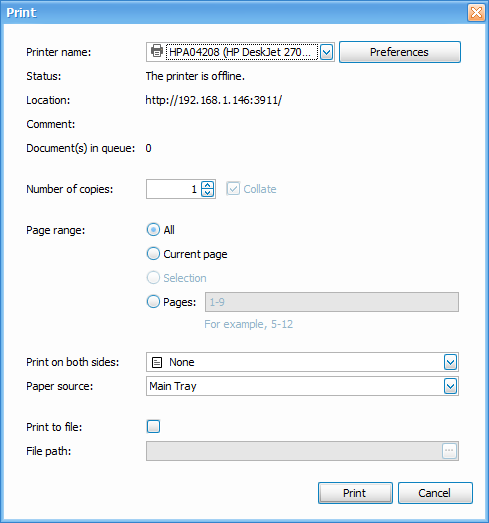
This button sends your document to your printer. Check that the correct printer is selected at the dropdown at the top and the options, including page range and preferences are correct and click the Print button again.
 Page Setup
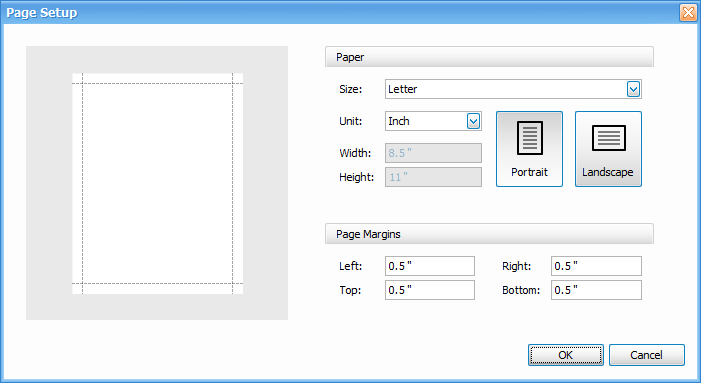
Click Page Setup to adjust paper size, page orientation, and margins.
 Scale
Scale
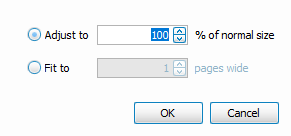
Scale adjustments allow you to adjust the printed size.
 Hand Tool
The hand tool allows you to click and drag to move around the page.
 Magnifier
This control changes your zoom level.
 Zoom
Zoom
The zoom tools allows you to specify a zoom level or choose options like fitting to page width.
 Page Navigation
These pages allow you to go directly to the First, Previous, Next or Last page of your document.
 Pages
Pages
This control allows you to choose the number of pages to display.

 Watermark
This button allows you to add text or a picture to the background of the printed report.
 Export & Email
These buttons allow you to Exports your document and save it to your computer or export and attach the document in an email client.
 Info
Info
The info button pulls up the Report Information, often included at the end of the report. You'll find a total count of individuals, the criteria used to get to this figure, and additional relevant information. In Labels the Report Information will also list a count by zip code.