Membership Settings
Access Membership Settings
To access from the Button Bar, go to Special Functions > Settings

Options: Module Settings
Show Middle Names
Check this box to include middle names by default. This is especially helpful for large congregation who have multiple members with the same names.
Location Defaults
Checking these boxes will prompt the program to default to the city, state, and zip code set up in System Info. You can always change this information.
Uppercase
This setting will capitalize the first letter of anything entered into one of the name fields.
Start/End Date Warning
Groups rely on start and end dates both for advancement and to note the dates individuals participated in groups. This setting prompts for clarification if you make a group without any dates.
Area Codes
This setting hides any area codes that match the default for the church, as set up in the System profile. Area codes that differ from the church will be printed.
Show Ages
This displays the ages of people who have birthdays entered into their individual record. Their age will be found in the lower right-hand listing of family members, within People.
Options: User Settings
Backup Before Mass Edit
Mass edits can make sweeping changes, sometimes with unintended outcomes. Leaving this box checked allows you to undo your last mass edit by clicking  .
.
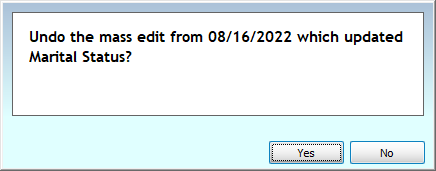
We highly recommend that this setting remain checked.
Family
Checking this setting sorts those in the People file by their program-assigned Family # rather than by last name.
Dashboard
This opens the Dashboard when the module opens.
Inactive
Checking this box defaults to excluding Inactive people.
Default Family Category
This setting allows you to default to a Family Category when creating a new family record.
Relabel Fields
The Relabel Fields tab allows you to change some of the default labels.
Click in the column on the right and fill in the new label you'd like to use.
You can add and customize fields in the Individual record. If you need a custom field for the family record, you may want to relabel Geographic Area, which is found on the Family Info tab.
Set Anniversary Date
The Anniversary Date is used for the Anniversary Report. By default, this report draws from the Marriage Date field, however, you can change this to create defaults for a different anniversary. Select from:
-
Marriage Date
-
Baptism Date
-
Confirmation Date
-
Membership Date
Attendance Options
These settings are a part of Attendance Options. Decide what information you'd like to track for each event or meeting. Communion Tracking is an available default, but as Communion is something that can be relabeled, you can use this default for something else by renaming that field. Choose to track for Events and whether to track for Groups and Classes.
You can also choose to have entry field for whether Events or Groups and Classes track excused absences.
These check boxes are also accessible from Attendance > Attendance Entry > Options
Lookup Data
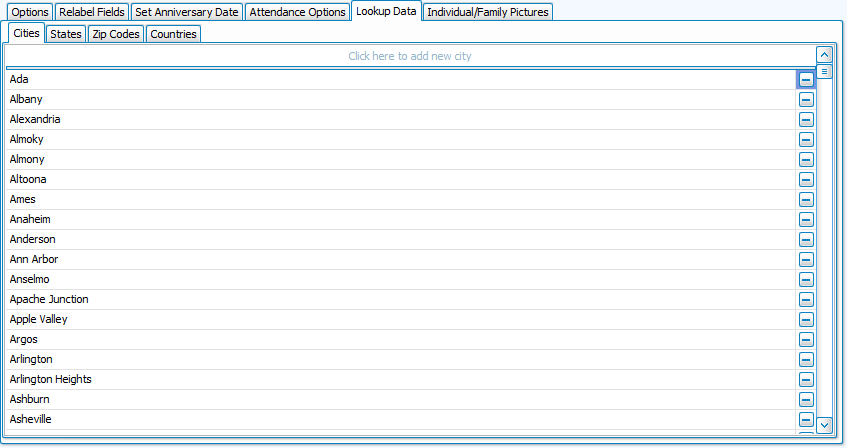
This tab contains the lists generated when you add in new contact information to your database. When you enter a City, State, Zip Code, or Country, that entry is saved for faster entry the next time it is selected.
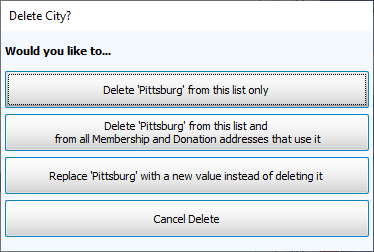
If an entry has been mistyped or has a slightly different duplicate, it can be removed from the look up list or from where it was previously entered.
Click the  on the line with error and choose from the following options.
Individual/Family Pictures
This tab provides a function for legacy users. If you only had photos attached to the 1 - Primary individual in the household, this allows you to assign that photo to the family record.