Advance Grades
Advance grades allows you to move up every record that has a school grade listed in one process. Any exceptions that did not proceed to the next grade level, can be manually corrected.
Access Advance Grades
To access from the Button Bar, go to Special Functions > Advance Grades.

Set Up
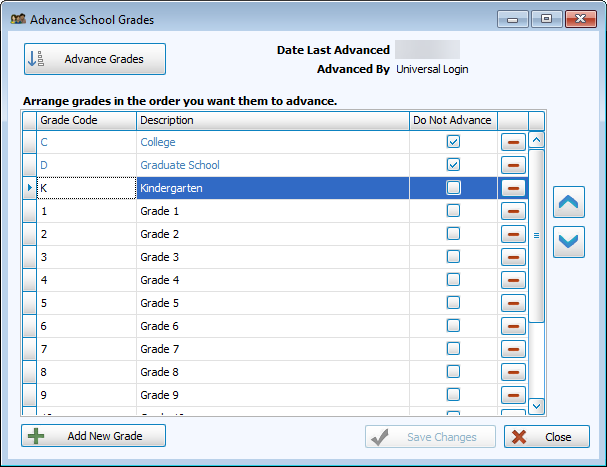
The default set up includes grades 01-12, preceded by K for Kindergarten, and followed by G for Graduate. You can add grades like N for Nursery or P for Preschool, or college grades 13-16.
Set Grade Order
In the event that you don't want a grade designation to advance, check the box in the Do Not Advance column. These grades will be shaded and move to the top of the list. The last grade in the list will not advance.
Grades will progress from the first in the list not marked as Do Not Advance. Change the order by selecting a grade and moving it with the  and
and  buttons.
Add New Grade
-
Click
 .
. -
Key in a Grade Code and Description.
-
Click
 .
.
Remove a Grade
-
Highlight the grade you want to delete.
-
Click
 .
. -
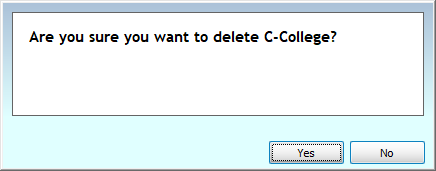
Confirm the deletion.
Advance Grades
-
Double check that the sort order is what you want and that the Date Last Advanced was last summer. Running Advance Grades twice in a nine-month span will prompt a warning and ask to confirm.
-
Click
 .
. -
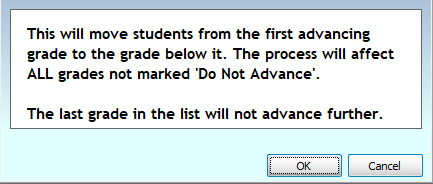
Confirm the advancement.

-
Click
 to exit.