Browse Attendance
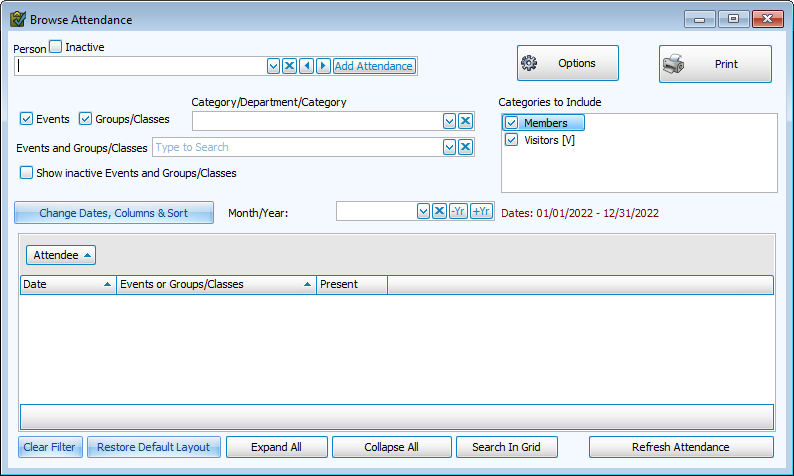
Browse Attendance allows you to review attendance entries. Use Browse to;
-
Add Missing Entries
-
Edit, Delete, and Copy Attendance
-
Review Dates and Events
Access Browse Attendance
To access from the Button Bar, go to Attendance > Browse .

Click  to open Attendance Options.
Click  to create a Print Preview of the information in the grid at the bottom of the screen.
Change Dates, Columns & Sort
Options
-
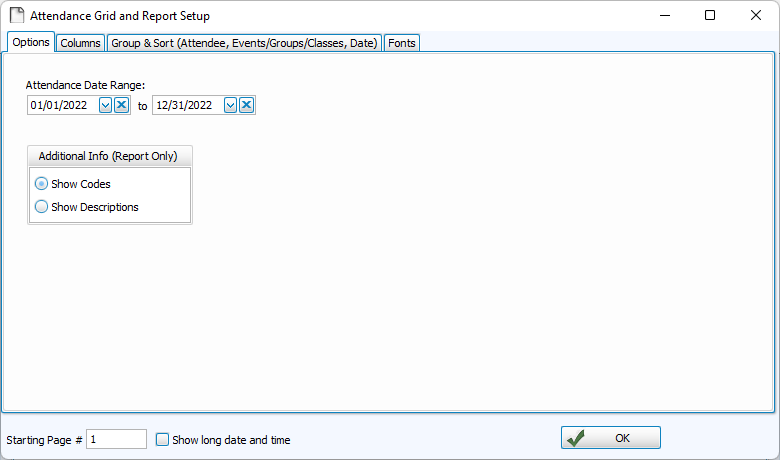
Attendance Date Range: Set the date range to display in reports
-
Additional Info: On reports, Show Codes will print the abbreviation or you can choose to expand with Show Description.
Columns
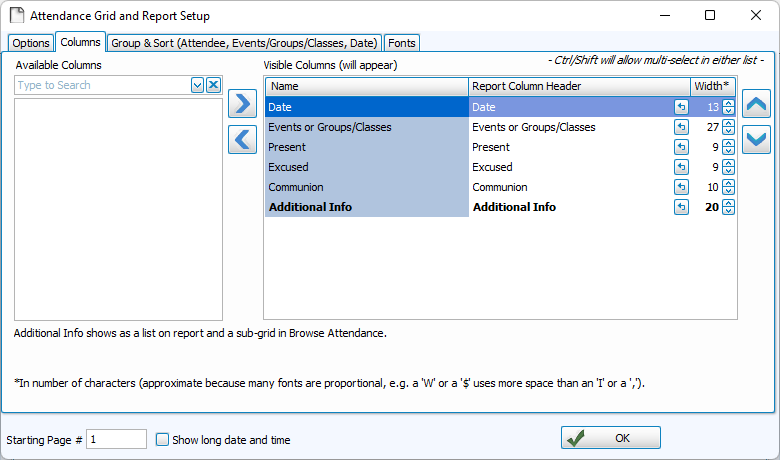
-
Move columns you want to include to the right, and columns you want to exclude to the left.
-
Use the
 and
and  or double click to move a column to the opposite side.
 -
To select multiple columns at once
-
Click + CTRL - Selects multiple lines in any order
-
Click + SHIFT - Selects a range of lines in row
-
-
Use the
 and
and  to change the order of the columns from left to right.
 -
Determine the width of a column by character count. Change or abbreviate how a column is titled by editing Report Column Header.
-
Columns that appear in bold are Detail Report Columns and include additional information indented under a subheading.
Group & Sort
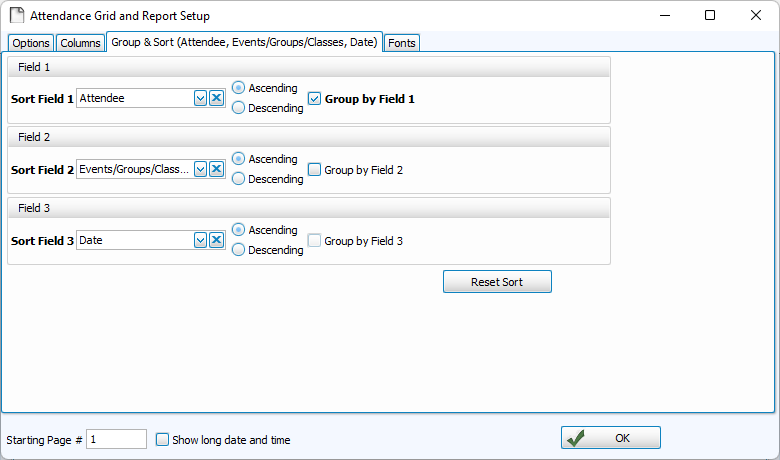
Sort fields allow you to order information. The first takes priority, when those are all the same, the program will sort within that section by the selection in the second, and then the third.
-
Sort in Ascending (A-Z, 0-9) or Descending (Z-A, 9-0) order.
-
Click
 to restore defaults.
Fonts
-
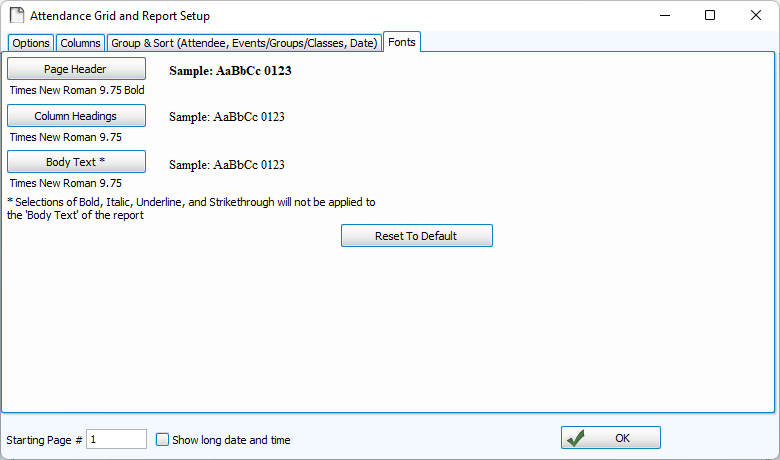
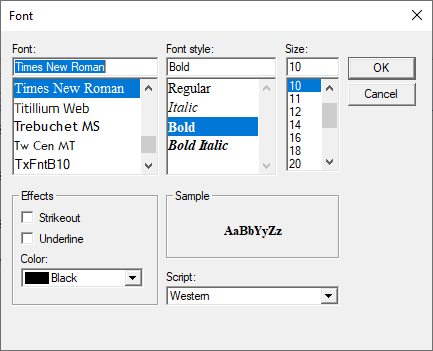
To adjust font, text size and font style, click on the corresponding report section button.
Browse an Individual's Attendance

In the Person drop down, search or select a person.
Include Inactive people with this  box checked. Inactive names appear in red. Click
  to clear the selection.
Use  to browse alphabetically.
Bring up an Individual's attendance history from their record in People by clicking  on the button bar, under the Attendance menu.
Add Attendance from Browse
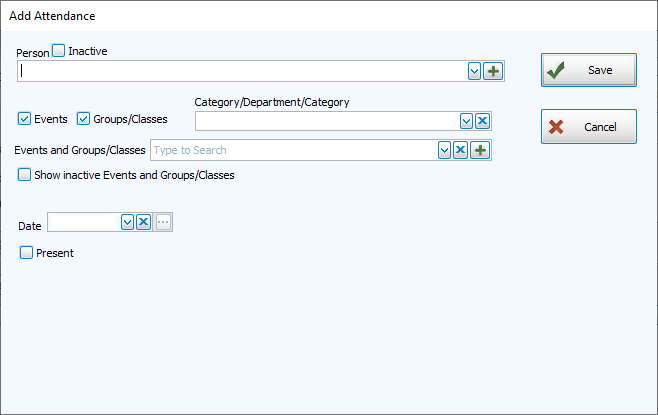
Click  to add attendance entries without needing to go to Enter Attendance
Browse by Event or Group
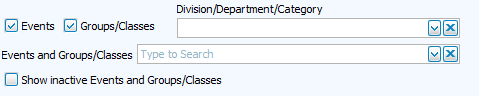
Filter your options with the check boxes to include Events or Groups/Classes. Further filter Groups/Classes by selecting a Division, Department or Category. Select the Event, Group or Class from the drop down.
The grid below will display all attendees within the specified time frame. Click  to see all of the dates attended when sorted by Attendee, or to see all attendees when sorted by date.
Browse by Date

The Browse Attendance screen will default to the current calendar year. Change dates using Change Dates, Columns & Sort, or with the Month and Year Controls.