Transfer Individuals Between Households
You may find that you have an existing individual record in one household, but now it needs to be added to another. This can occur for a number or reasons:
-
An Individual record was mistakenly added to the wrong family
-
A couple separates and therefore become two separate households
-
A child grows up and needs a new record for their own family
Transfer to a New Family Record
-
Open People from the Button Bar
 or Quick Access
  .
. -
Use the Person Lookup to find the Individual you need to transfer.
-
Click
 .
. -
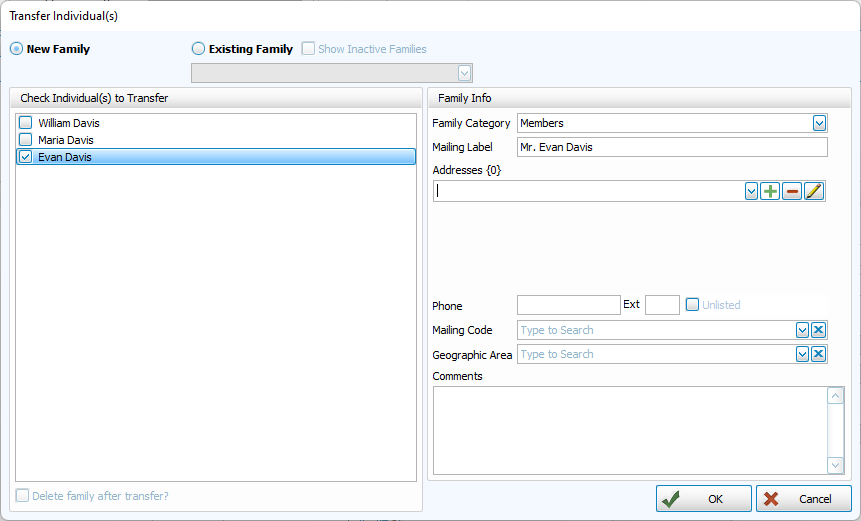
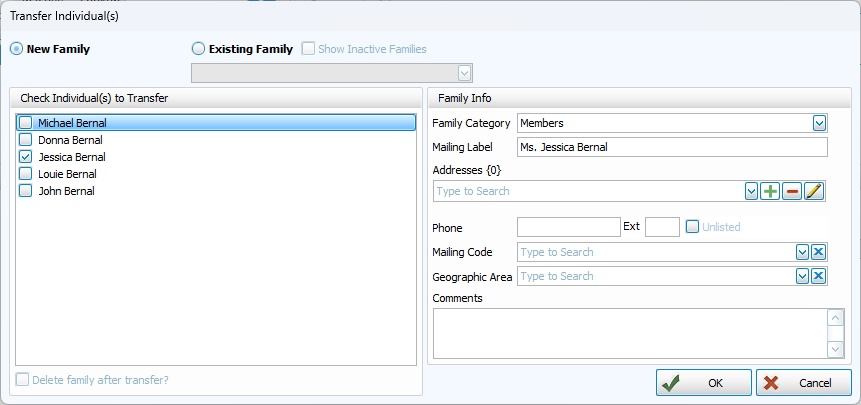
Make sure only the Individual(s) you want to transfer are checked on the left side. Keep New Family selected at the top.
-
Enter a Family Category and Mailing Label.
-
Optional: Enter the primary family address and phone number. You may also want to complete some of the noted Family Info fields. Once the record is created, you'll be able to add any information later that wasn't readily available when it was created.
-
Click
 . The following message will appear with suggestions for fields to verify in both the family it is transferring to and from.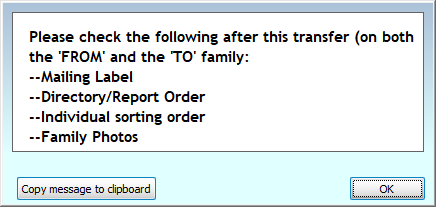
Transfer to an Existing Family Record
-
Open People from the Button Bar
or Quick Access . -
Use the Person Lookup to find the Individual you need to transfer.
-
Click
. -
Make sure only the Individual(s) you want to transfer are checked on the left side. To look up the household this person will be transferred into, select the radio button for Existing Family.
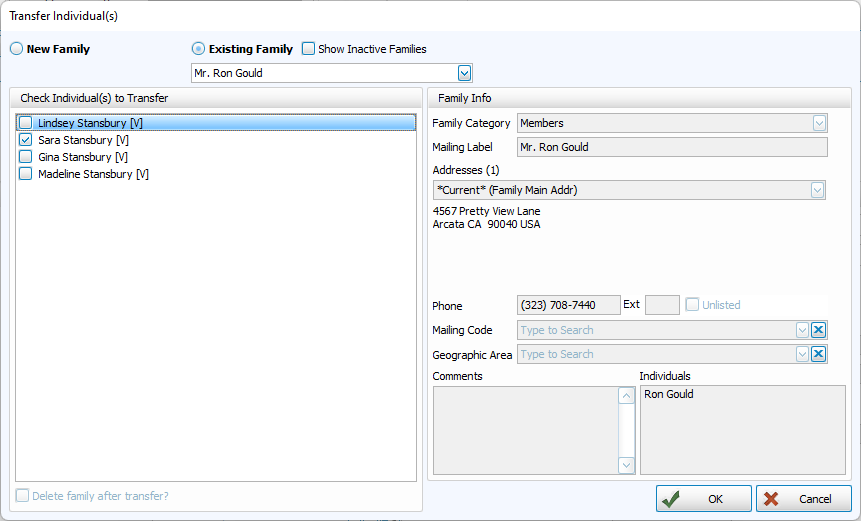
The New Family's information will populate on the right, but you won't be able to edit these fields without going to the record.
-
Click
. The following message will appear with suggestions for fields to verify in both the family it is transferring to and from.
Link Children in Two Family Records
-
Open People from the Button Bar
or Quick Access . -
Navigate to the family record that the child is not listed in, but should be linked to.
-
Go to the Family Record > Other Tab.
-
Click
 .
. -
In the People drop down, search for the child to link to this family. They must be listed with a Directory/Report Order of 3 - Child with Family to appear in this list. Click
 .
.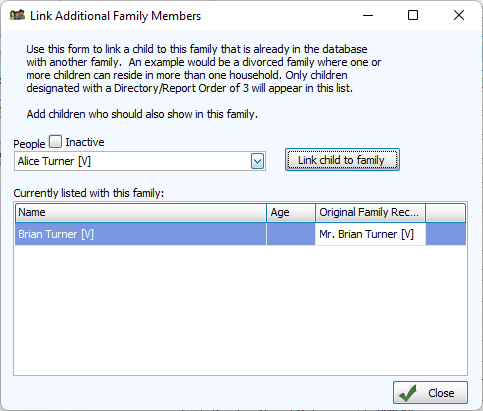
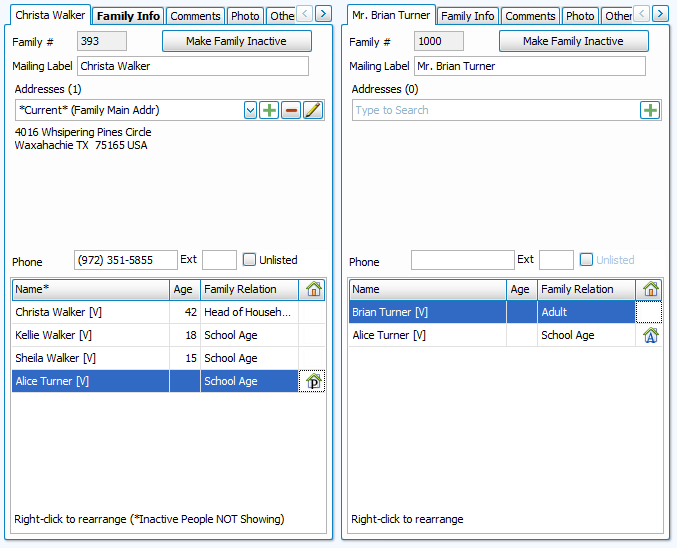
The child can now be seen included in both families but with only one individual record. The icon represents the child's Primary household while the A icon represents a child's Additional household.