Bulk Mailings
Church Windows meets US Post Office requirements for bulk mailing discounted rate. Talk to a representative at your local post office for more information on their requirements for bulk mailing.
Church Windows Compliance with USPS Requirements
In order to send out bulk mailings, you'll need a permit from the USPS. If you use Standard Bulk Mail, you may qualify for a non-profit rate from the USPS. For further information about bulk mail, you can request "Publication 95" (also known as the "Quick Service Guide"), from your local postmaster, at www.usps.com.
Church Windows also works in conjunction with Postage $aver, a PAVE-Gold certified program that processes your bulk mailings in the most cost-effective manner. PAVE-Gold is the highest level of certification that a program can attain from the USPS. We have partnered with Postage $aver to maximize your organization's mailing capabilities.
Postage $aver
For a free trial of Postage $aver, visit their website, savepostage.com. Once the program is installed, go to Administration, then System Information, then click Browse. After the program finds the location click OK. A message will appear, notifying you that your 30-day trial has begun. Once the trial period is over, you will need to purchase Postage $aver to continue using it.
Using Postage $aver with Church Windows
After Postage $aver is installed, follow the instruction and make sure the correct Church Windows serial number is entered. Click Browse and it will search the mapped drives automatically to find the Postage $aver program.
In order to create Labels with barcodes, you will need to link Postage $aver with Church Windows:
-
To finish linking program, check Use Postage $aver
-
If Postage $aver is installed on your computer, the program will automatically fill in the file location.
-
If this does not happen, you can click the
 box and browse to where Postage $aver was installed.
 -
Once the file location is chosen, click OK.
If Postage $aver cannot be found on a mapped drive, an explorer win point the system to the correct drive. The drive does not have to be mapped for Postage $aver to work This step will need to be completed on each computer that will have access to the Postage $aver program.
 Add Barcodes to a Label Layout
Postage $aver will generate a barcode for each address. Once the programs are linked, you will see the barcode options available in the label Report Designer toolbox. To print barcodes on your Labels, select a Label Layout or create a New Label that includes a barcode box.
-
Create a new Labels by clicking
 from the Step 2 screen.
 -
Select a label product that is at least 3.5 inches wide to accommodate the bar code. Click Next.
If your label type is not listed, you can choose a close approximation and manually adjust the parameters. We recommend using the label manufacturer dimensions, printing on plain paper, and making adjustments as necessary.
Click Finish.
-
Default label fields have the Mailing Label and Current Address. Click and drag this container to make room for the barcode.
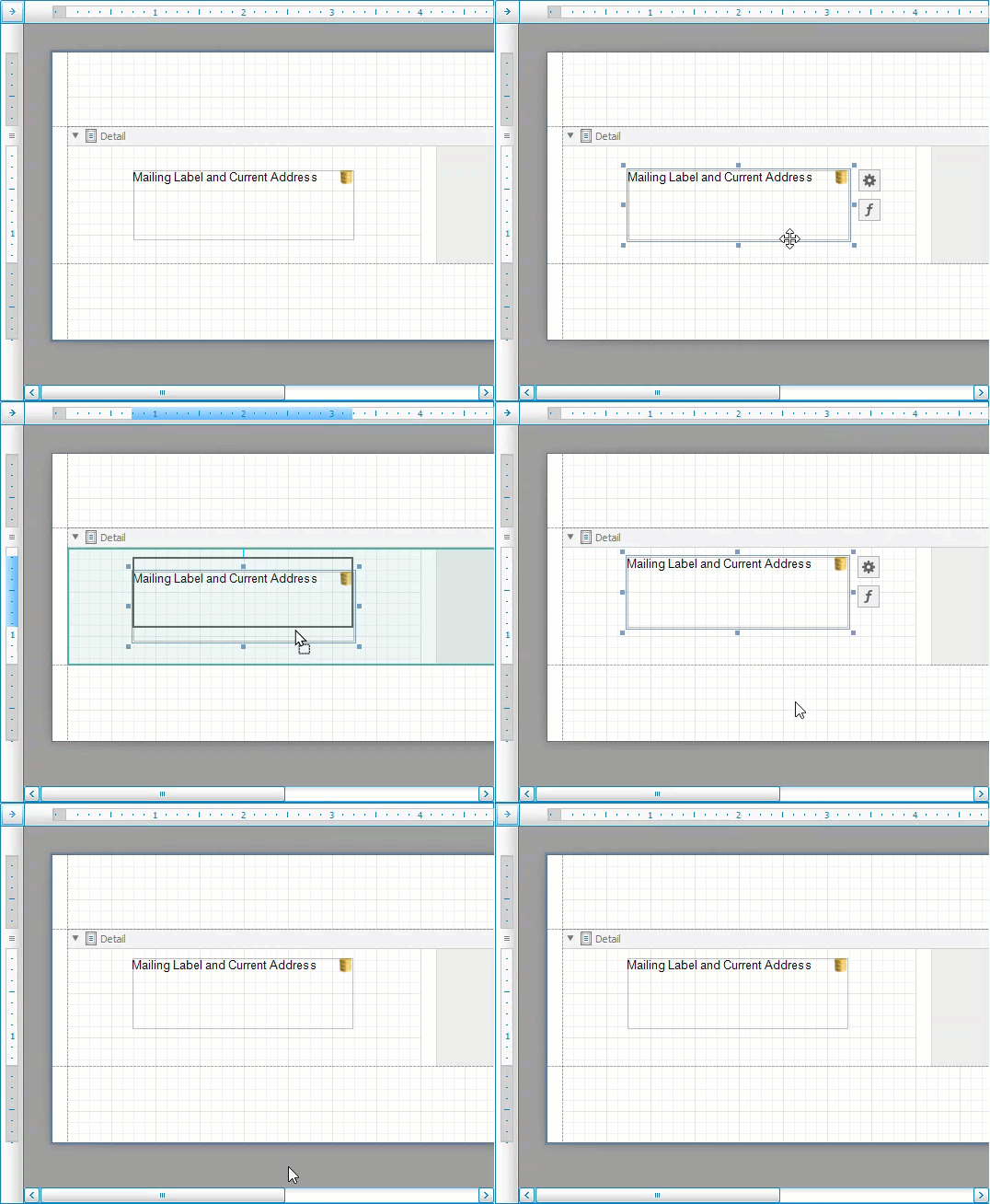
-
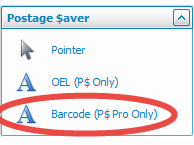
On the right side, in the Toolbox, find the section for Postage $aver. Click and drag Barcode to the place you made in the label designer grid.
Pink/red in the designer grid indicate fields that are overlapping. Adjust each field as needed until the pink highlights disappear.
-
In the upper-left hand corner, click Save As and choose a name for your barcode layout.
Barcodes are not needed unless you are sending thousands of pieces of mail, and they must be identical (such as a newsletter). This would not include Donation statements, as there are variations like names and amount of information for each. Bulk Mail rate requires 200 pieces or more and does not require barcodes. USPS states: Barcoding your mail may entitle you to a lower postage rate, but only if all the other requirements for automation postage prices are met. A barcode alone will not qualify your mail for automation prices. In general, the US Postal Service recommends that, unless you are preparing a mailing for automation prices, you should not include barcodes. As long as the mailing address is correct, it will still be processed efficiently without a barcode, and you won’t need to worry about having the barcode on your mail. A bad (incorrect) barcode is much worse than none at all: it can cause your mail to be sent to the wrong destination.
Once you have entered criteria and settings for labels, click Print for Postage $aver options.
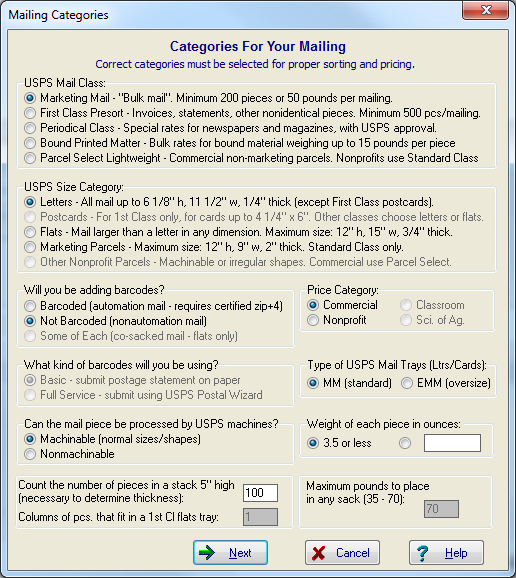
Enter your categories. For questions or clarifications on this dialog, reach out to Postage $aver. For information on mailing requirements, consult USPS.
Once Postage $aver has all of the necessary settings entered, it will re-sort them to the correct USPS requirements.
Postage $aver Reports
You can print three reports at a time. If you skip these reports now, you can access them from the Postage $aver software directly until your next mailing.
-
Mailing Preparation Instructions
Provides information on how to organize your mail, how much money you’ll need, and give you information for the USPS statement.
-
USPS Qualification Report
Take this to the post office when you drop off your mail.
-
Tray/Sack Tags
This will print cards to label your trays and sacks. For this report you can use Avery 5371 (postcards/business cards for laser printers) or Avery 8371 (postcards/business cards for ink jet).
If, during the envelope labeling process, they get out of order, you can use the Mail Preparation Instructions to put them back in order.
CASS Certification and NCOA Processing
If you will be printing labels with barcodes, you will need to certify your address with USPS. The postal service will certify your addresses once for free. Church Windows recommends Lorton Data to handle your Coding Accuracy Support System (CASS) Certification needs. Lorton has agreed to accept the input and format the output disk to make the USPS functions that exist in Church Windows. You can access the Lorton certification at www.churchwindows.com/partners-lorton-data. For your convenience, we have filled in some of the information required. Your address should be CASS certified at least every six months. If you have any questions about Lorton, visit lortondata.com or call 651.203.8290. Make note of the section marked “retain case”. Without this notation, your data may be returned in all uppercase. It is okay for your data to be in mixed case as Church Windows will convert to uppercase and strip punctuation when you print mailing labels.
Not sure if you need CASS/NCOA?
We recommend reading the general information provided by Postage $aver at www.bulkmail.info, specifically http://bulkmail.info/moveupdate.html. You can also contact your local postmaster for further details.
Once you have determined your addresses must be certified, you can create a CASS/NCOA file and then Import your output from Lorton.
Create a CASS/NCOA file
The People file must be closed to perform this action.
-
Navigate to either Member or Donations > Special Functions > CASS/NCOA.
-
Select Create CASS/NCOA file.
-
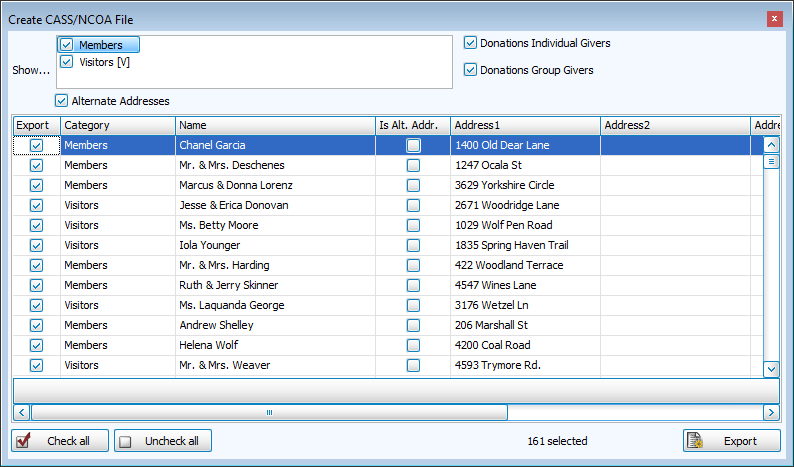
Check the types of records you want to export, as well as whether to include Alternate Addresses.
-
Make individual selections or exclusions by checking the box in the Export column.
-
Click
 .
. -
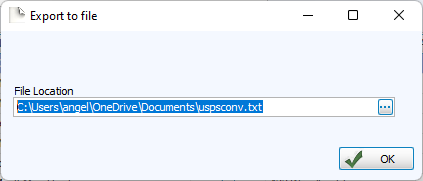
Choose the location you'd like to export to.
-
Click OK.
-
Complete Lorton's instructions and forms.
After you send your data away for processing, any name or address change that you make before you get your data back will be lost when you restore the output into Church Windows. Keep a manual record of necessary changes to complete after you import your output from Lorton or USPS.
Import your Output from Lorton
The People file must be closed to perform this action.
-
Make a Backup Data of your data.
-
Navigate to either Member or Donations > Special Functions > CASS/NCOA.
-
Select Import CASS/NCOA file.
-
Click the
 button.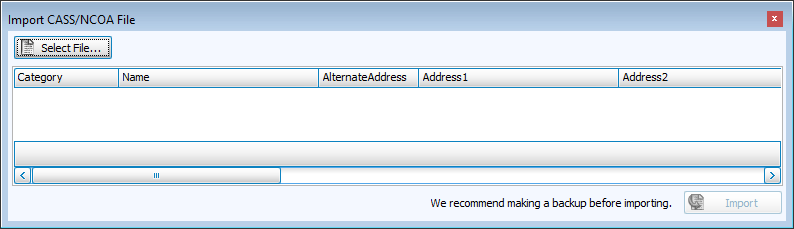
-
Browse to the file location and select the output.
-
Click
 .
.